Company Schedule
Overview
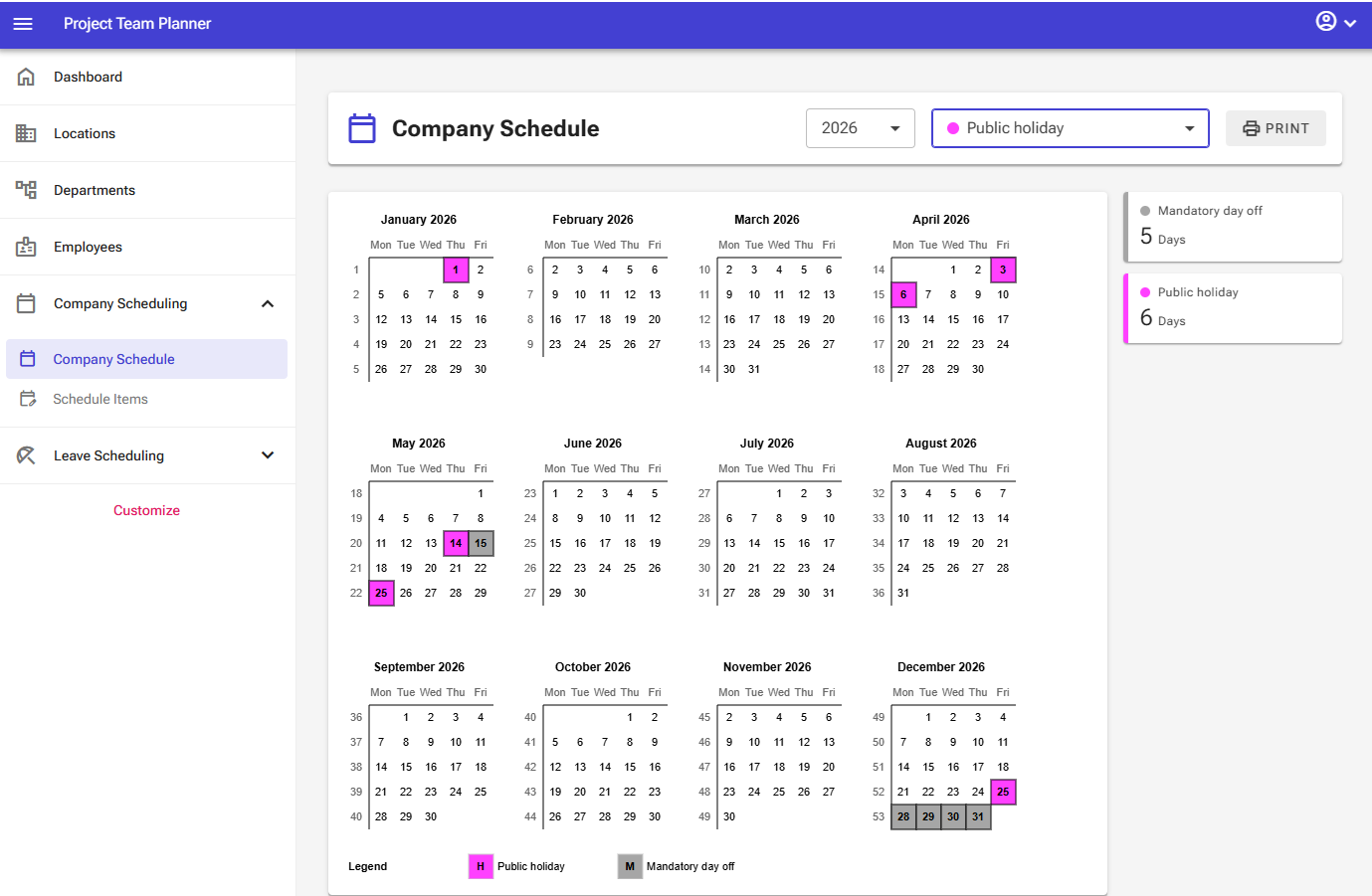
The Company Schedule page allows you to manage company-wide events, such as public holidays and mandatory office closures, on an interactive annual calendar.
Role
The company schedule is a integrated part on all the schedules. It marks days which can not be used elsewhere anymore.
Prerequisites
Company schedule is a core component of both the Employee Leave Scheduling Module and the Employee Project Scheduling Module.
Operation & Functions
The top bar and side panel provide several controls to manage and review the calendar:
- Year Selector: Use the top-left dropdown menu to switch between different planning years.
- Schedule Item Selector: Select the specific event type (e.g., Public Holiday) you want to assign to the calendar.
- Print Button: Generates a printable version of the annual company calendar.
- Summary Panel: Located on the right side of the calendar, this panel displays a breakdown of all scheduled items for the selected year and the total count of days assigned to each type. Use this panel to quickly verify that all required holidays or closures have been entered.
The calendar itself supports the following mouse actions:
- Left-click: Assigns the selected schedule item to a date.
- Right-click: Removes a scheduled item.
Managing Schedule Entries
Scheduling a Day
- Select the desired Schedule Item from the top bar dropdown menu.
- Left-click on any date within the calendar grid to apply the selected schedule item.
Removing a Day
- Right-click on any scheduled date to clear the item from that day.
Print Options
You can print the following report directly from this page:
- Company Calendar: Prints an annual overview mirroring the layout shown on your screen.