Employee Project Schedule
Overview
The Employee Project Schedule allows you to schedule project groups, which consist of one or more projects and employees.
Role
The Employee Project Schedule is used to schedule employees on project groups.
Prerequisites
The Employee Project Schedule is a core component of the Employee Project Scheduling Module.
Operation & Functions
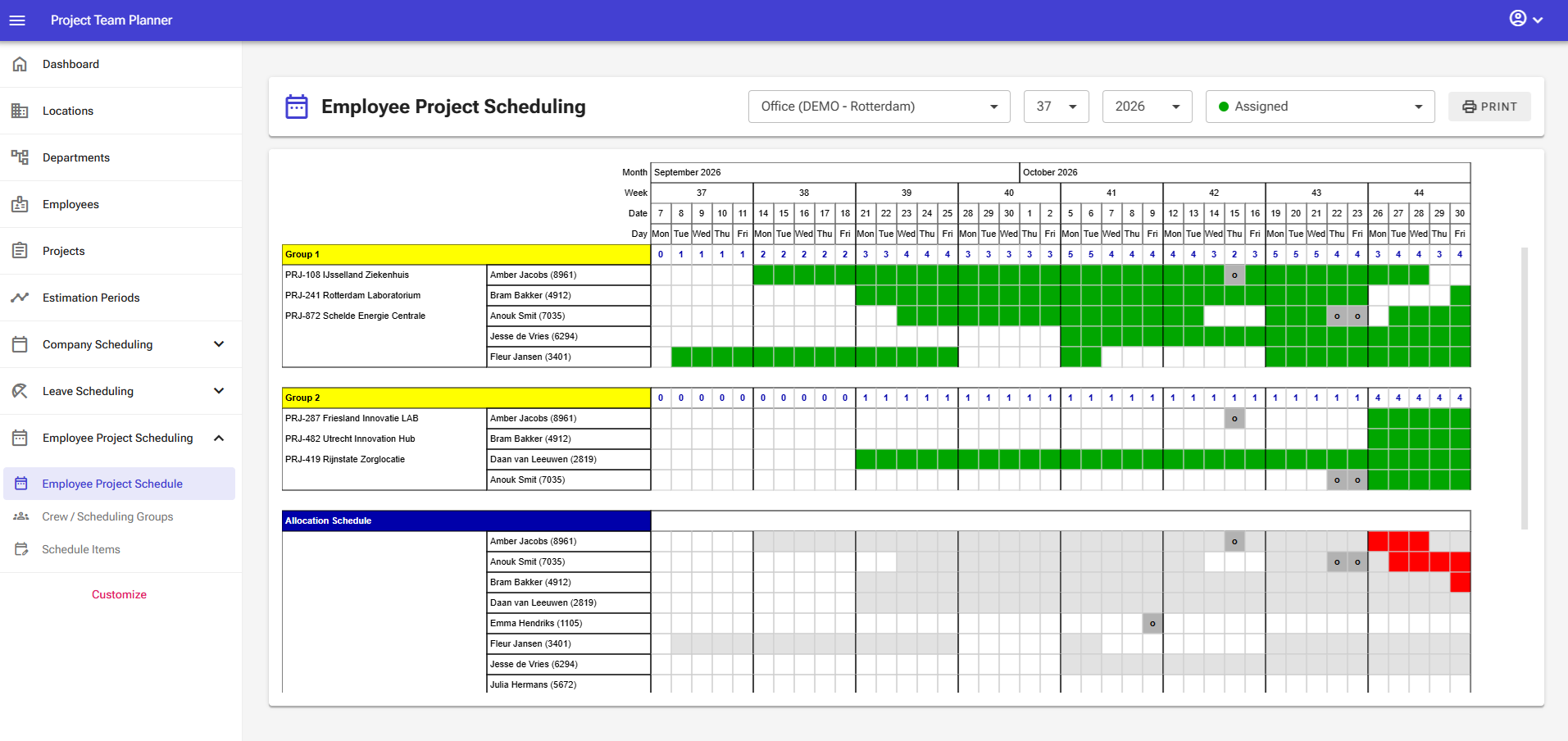
The Employee Project Schedule screen contains the following elements:
- Department Selector: Use the top-left dropdown menu to filter by department.
- Week Selector: Use the dropdown menu to choose the starting week number for the overview.
- Year Selector: Use the dropdown menu to switch between planning years.
- Schedule Item Selector: Select the specific event type (e.g., Assigned) you want to assign to an employee.
- Print Button: Opens a print template selection window where you can choose the report you want to generate.
The grid itself supports the following mouse actions:
- Left-click: Assigns the selected schedule item to an employee on a specific date.
- Left-click and drag: Assigns the selected schedule item across a range of dates for an employee.
- Right-click: Removes a scheduled item from an employee on a specific date.
- Right-click and drag: Removes scheduled items across a range of dates for an employee.
- Double-click: Double-clicking on project or employee names opens the Schedule Group details view.
The grid shown at the bottom is the allocation schedule. This section is not interactive, but it shows whether employees are already assigned to a project group or if an employee is double-booked.
Note: In the server edition of the software, certain elements may not be visible depending on your user permissions.
Managing Schedule Entries
Scheduling a Single Day
- Select the desired Schedule Item from the top bar dropdown menu.
- Left-click on the target date column in the employee's row to apply the item.
Scheduling a Range of Days
- Select the desired Schedule Item from the top bar dropdown menu.
- Left-click and hold on the starting date in the employee's row, drag across the date range, and release the mouse button to apply the item.
Removing a Single Day
- Right-click on any scheduled date to clear the item from that day.
Removing a Range of Days
- Right-click and hold on the starting date in the employee's row, drag across the range of dates, and release the mouse button to clear the items.
Warning: Exercise extreme caution when deleting a schedule item. Deleting an item permanently removes all associated scheduled days from the calendar.
Print Options
You can print the following reports directly from this page:
- Employee Project Schedule (operational): Generates a department-level overview suitable for sharing (GDPR compliant).
- Employee Project Schedule (management): Generates a detailed overview for management that displays all specific scheduled item types.
- Group Employee Project Schedule (operational): Generates a group-specific overview to be shared with project leaders (GDPR compliant).
Print Example: Employee Project Schedule (operational)
This is an example of a standard-sized operational employee project schedule print (A3/B3/Tabloid paper size).

Print Example: Employee Project Schedule (management)
This is an example of a standard-sized management employee project schedule print (A3/B3/Tabloid paper size).

Print Example: Group Employee Project Schedule (operational)
This is an example of a small-sized operational group employee project schedule print (A4/B4/Letter/Legal paper size).
