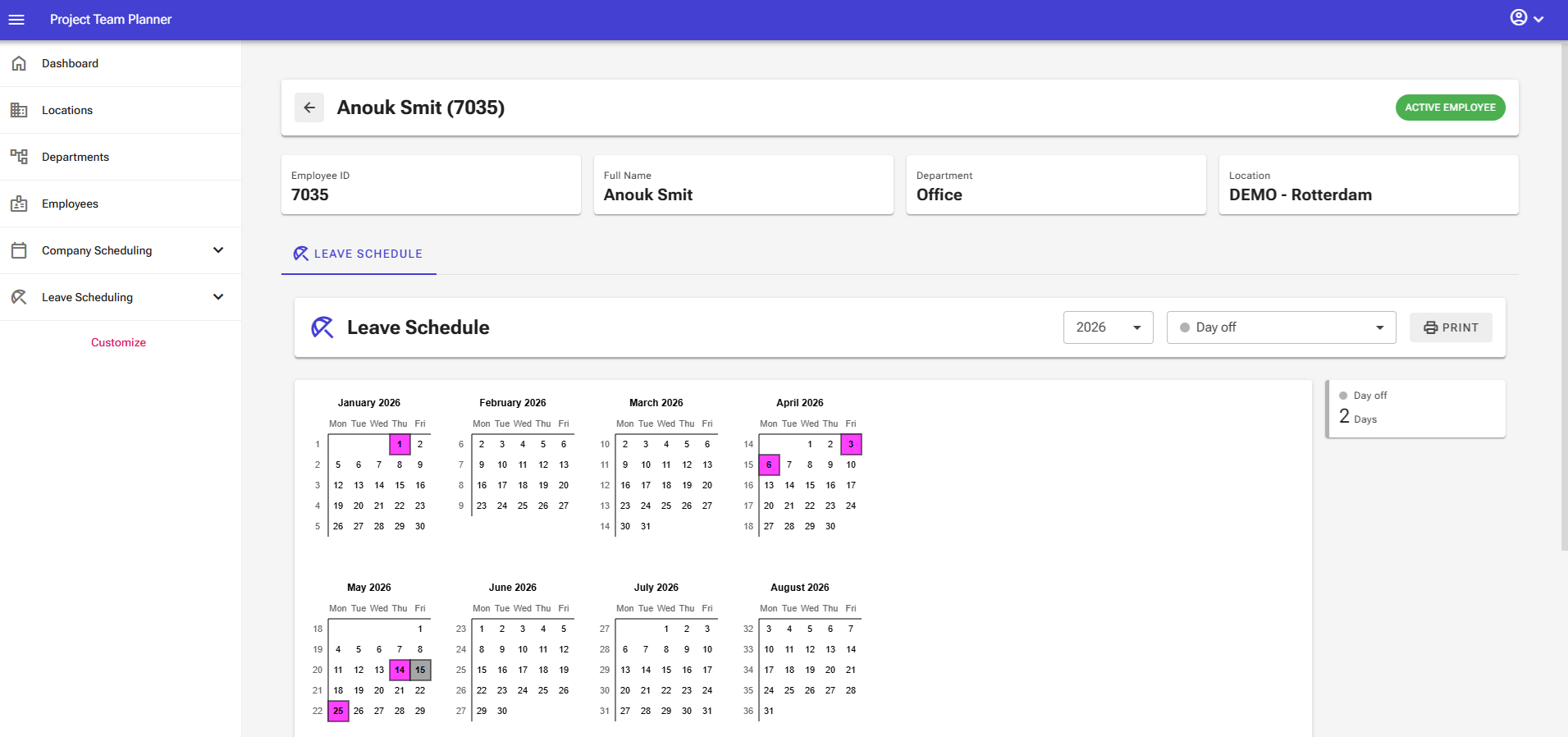
Getting Started with Leave Scheduling
Prerequisites
Locations, departments, and employees have already been entered into the software. If not, go through the entering master data guide first.
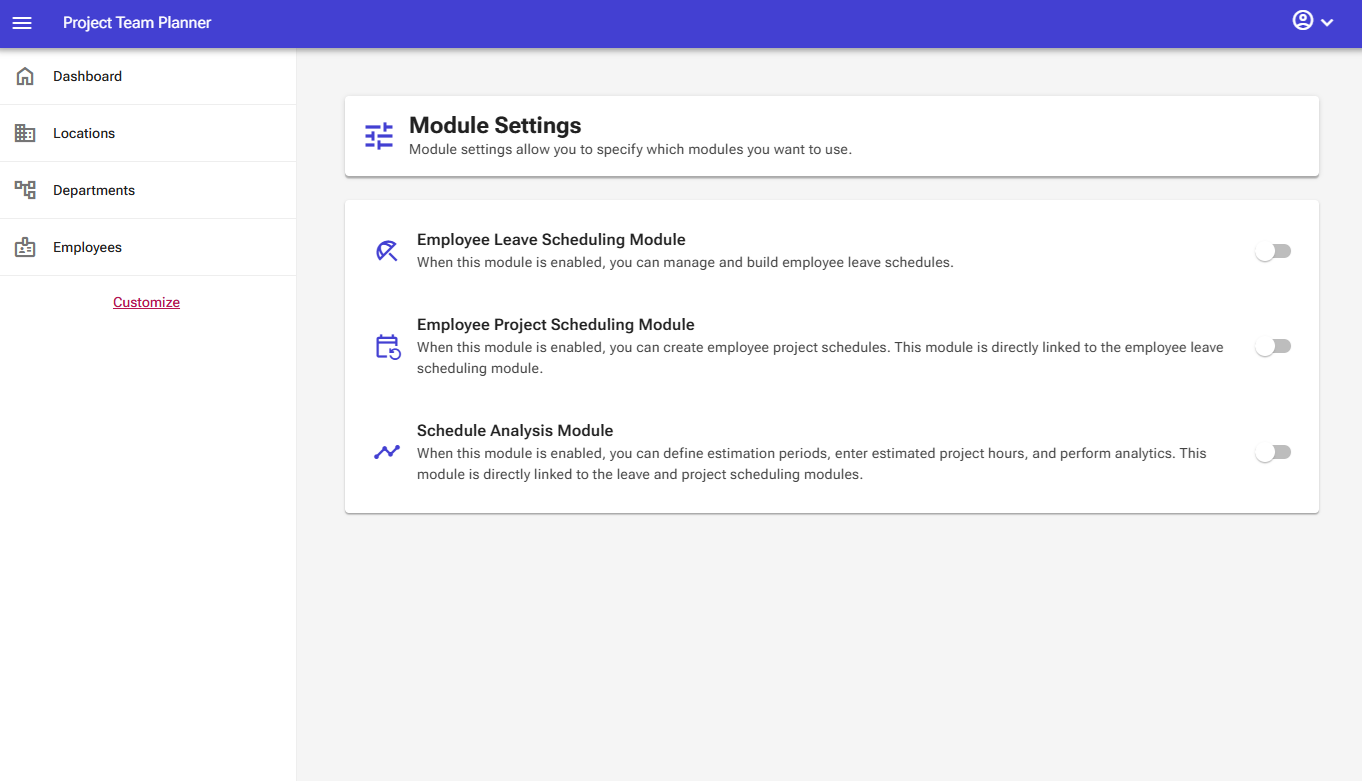
Activating the Module
- In the bottom-left menu, go to Customize.
- Activate the Employee Leave Scheduling module.
Once activated, the Company Scheduling and Leave Scheduling sections will appear in the menu. Additionally, each employee profile will get a new tab: Leave Schedule.
Step 1: Creating Company Schedule Items
- Go to Company Scheduling > Schedule Items.
- Click New and create an item, for example, Public Holiday.
- Assign a code and a color, then save.
Tip: Create items here for general company obligations as well, such as mandatory time-off days.
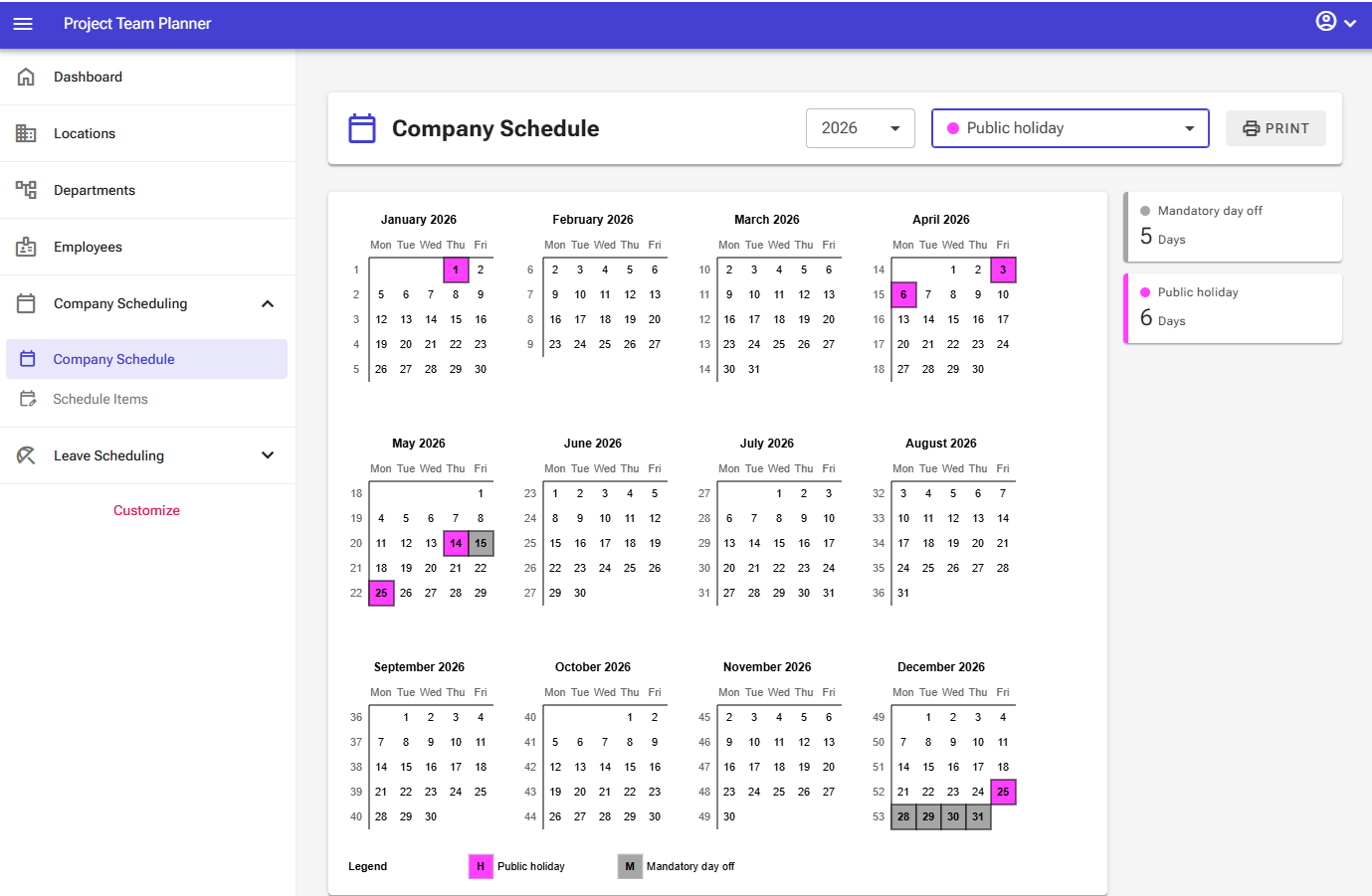
Step 2: Setting Up the Company Schedule
- Go to Company Scheduling > Company Scheduling.
- In the top-right corner, select the desired planning item (e.g., Public Holiday).
- Left-click dates on the calendar to schedule them.
- Right-click to remove any accidentally scheduled days.
To the right of the calendar, you will see an overview of the total number of scheduled items by type. Use the Print button in the top-right corner to print the company calendar.
Step 3: Creating Leave Schedule Items
- Go to Leave Schedule > Schedule Items > New.
- Create items such as PTO Day or Personal Time Off, and assign them a code (e.g., 'o') and a color.
Configuring System Items: Rename the default "Occupied" item to a recognizable name like "Unavailable." This item is used for privacy-friendly overviews.
Step 4: Scheduling Leave Days by Department
- Go to Leave Schedule > Leave Schedule.
- Select the desired department and schedule item at the top.
- Left-click on the grid for the desired date next to an employee's name.
- Scheduling date ranges: Click on the start date, hold down the mouse button, and drag to the end date.
- Deleting items is (also) done via right-click.
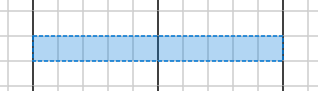
Note: General company-wide days from the company planning schedule are automatically integrated into this overview.
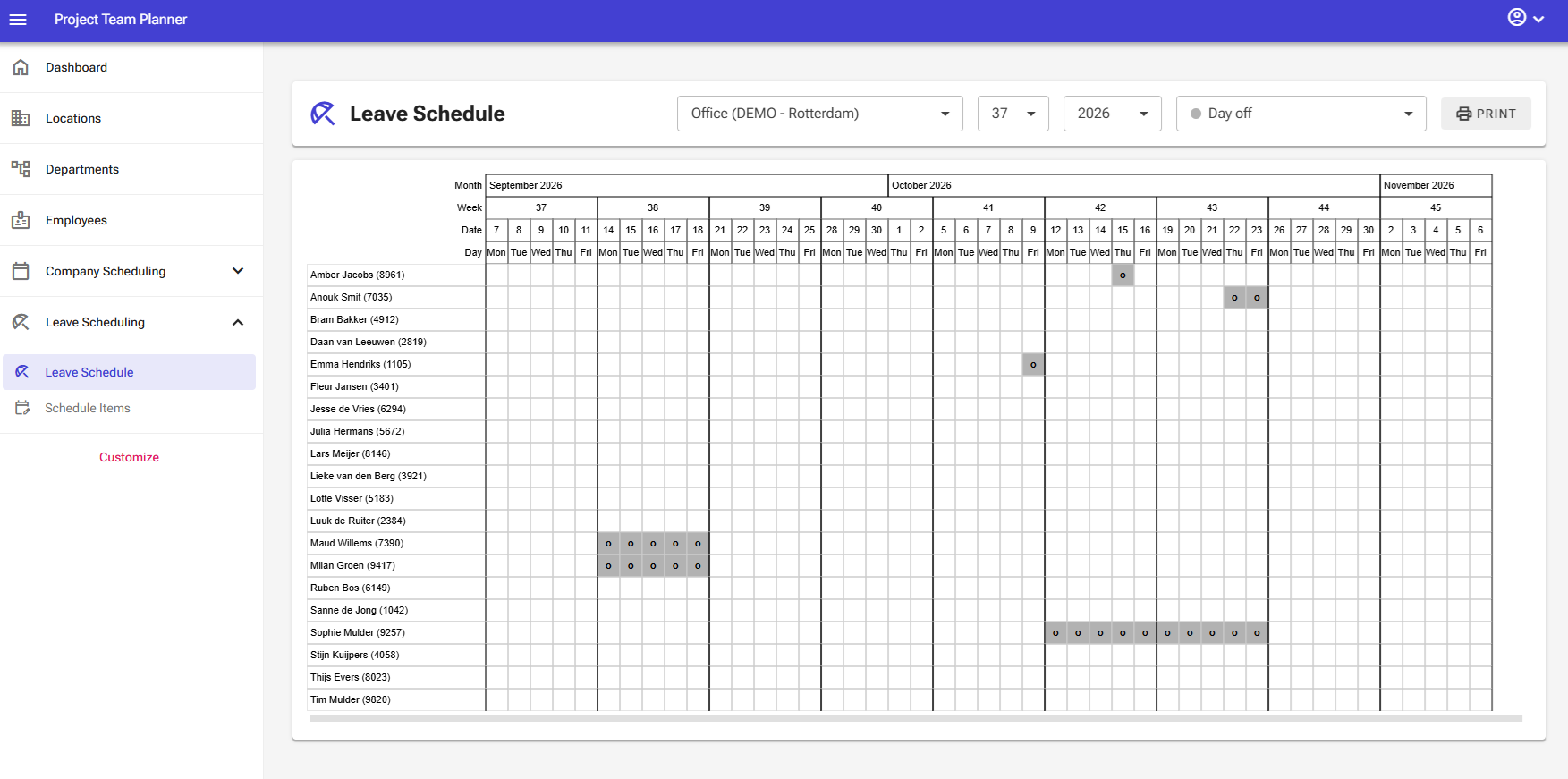
Alternative: Scheduling for an Individual Employee
- Go to Employees and open an employee profile.
- Open the Leave Schedule tab.
- Select a planning item in the top-right corner and click dates on the personal calendar.
- If needed, use the Print button to print an individual calendar or a list of scheduled days.