Employees
Overview
Employees work within your company's locations and departments. In the software, each employee is defined by an Employee ID and an Employee Name, and is directly linked to a specific department.

Role
Employees are a foundational component of your master data. Adding employees is required before you can manage schedules or assign projects.
Prerequisites
Ensure you have set up at least one Company Location and one Department before adding employees.
Operation & Functions
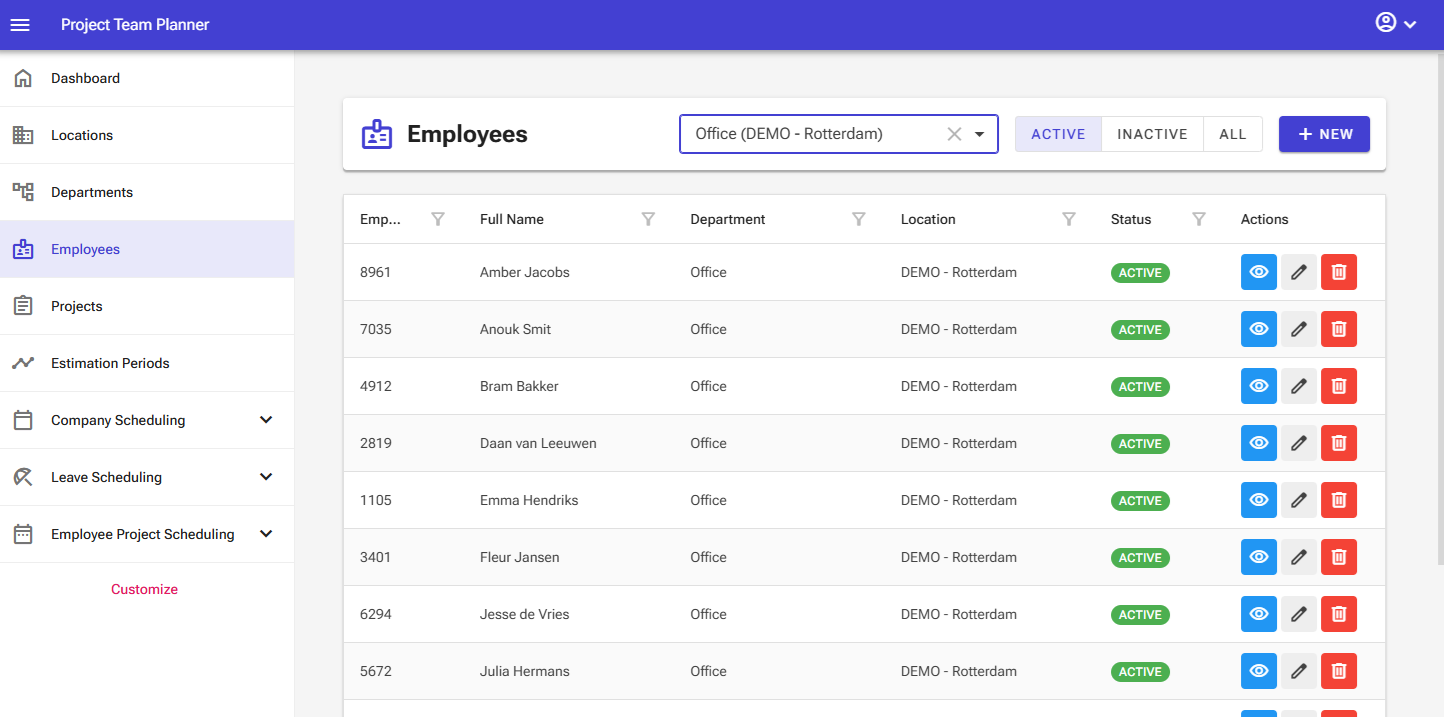
The employee management screen contains the following elements:
- View filter: The top bar features a dropdown menu that allows you to filter employees by department.
- Status filter: The top bar features buttons that allow you to filter the overview by active, inactive, and all employees.
- New button: The top bar features a "New" button that allows you to add new employees.
- Overview: The screen displays an interactive table that lets you sort, filter, and search using the column headers.
The overview itself contains the following controls:
- Details button: Opens a detailed overview.
- Edit button: Allows you to edit an item.
- Delete button: Allows you to delete an item.
Note: In the server edition of the software, certain elements may not be visible depending on your user permissions.
Adding an Employee
To add a new employee:
- Select Employees from the left navigation menu.
- Click New.

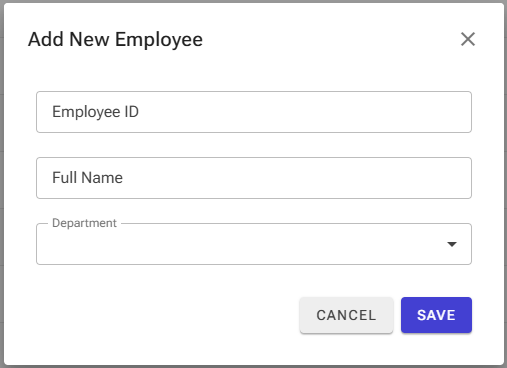
- Enter the Employee ID, full Employee Name, and select the associated Department in the input form.
- Click Save.
Editing an Employee
To update an existing employee profile:
- Select Employees from the left navigation menu.
- Locate the target item and click Edit.

- Update the necessary fields and save your changes.
Deleting an Employee
To remove an employee:
- Select Employees from the left navigation menu.
- Locate the target item and click Delete.

- Confirm the deletion in the pop-up window.
Warning: Exercise extreme caution when deleting an employee. Deleting an employee permanently removes all associated schedule data.
Tip: Rather than deleting an employee, we recommend setting their status to Inactive. This hides them from active views while preserving all historical (schedule) data.