Employee Project Schedule Items
Overview
Employee project schedule items allow you to define the types of schedule items available within the employee project schedule. Commonly, this is where you define simple "assigned days" but you can also define specific tasks.
Role
The Employee Project Schedule Items are used in the Employee Project Schedule, and the dates they are used on are visible in the Employee Project Scheduling.
System Schedule Item
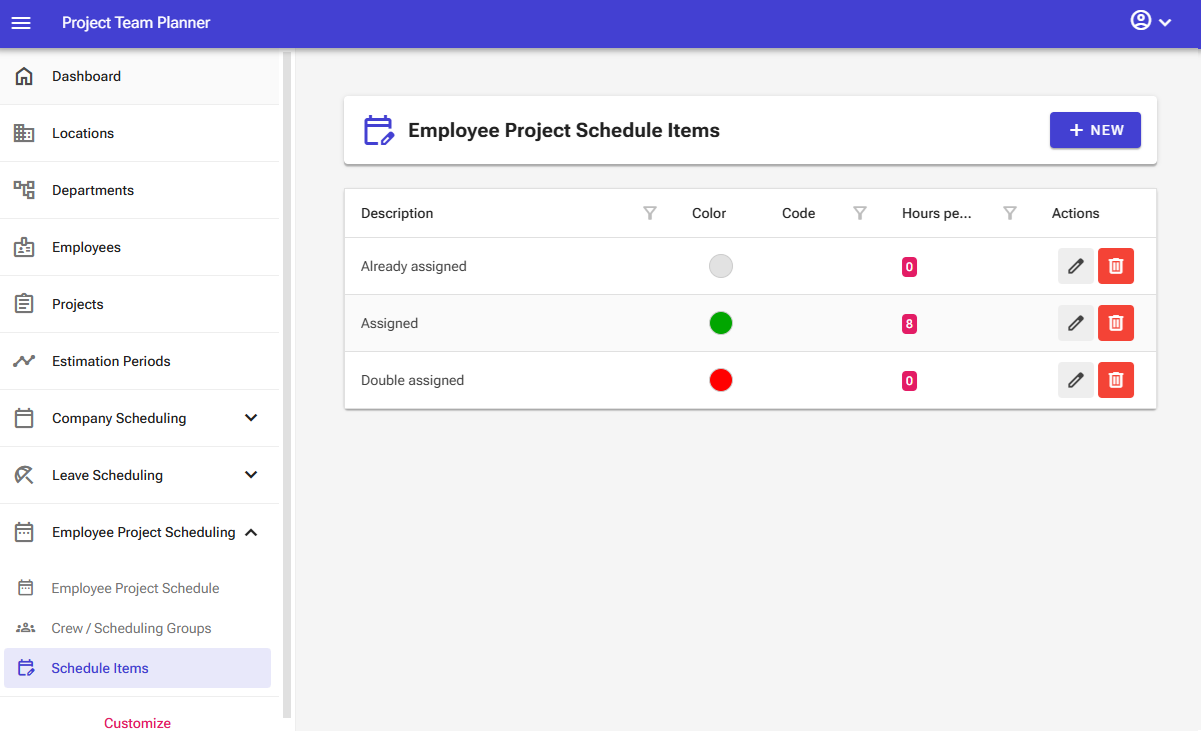
The overview includes 2 permanent System Schedule Item initially named "Double" and "Already Assigned". The following rules apply to these items:
- Editable: You can customize the description and properties of this item.
- Not selectable for scheduling: This item cannot be manually selected when scheduling days on the planner.
- Cannot be deleted: This item cannot be removed from the system.
Purpose: This system items are used for calculated items. You can see them displayed in the "Allocation Schedule".
Prerequisites
Employee project schedule items are a core component of the Employee Project Scheduling Module.
Operation & Functions
The employee project schedule items management screen contains the following elements:
- New button: The top bar features a "New" button that allows you to add new employee project schedule items.
- Overview: The screen displays an interactive table that lets you sort, filter, and search using the column headers.
The overview itself contains the following controls:
- Edit button: Allows you to edit an item.
- Delete button: Allows you to delete an item.
Note: In the server edition of the software, certain elements may not be visible depending on your user permissions.
Adding a Schedule Item
To add a new schedule item:
- Select Employee Project Scheduling > Schedule Items from the left navigation menu.
- Click New.

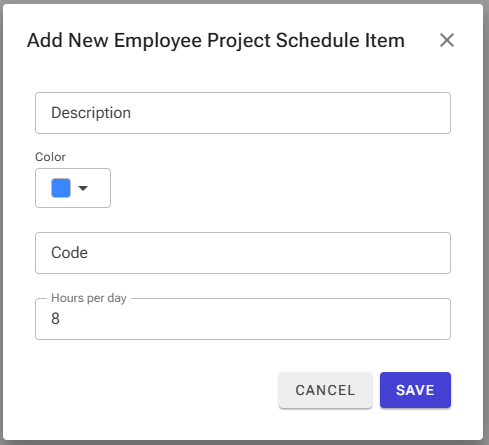
- Enter a Description for the schedule item (e.g., Assigned day), select a color, set an optional display code, and specify the number of hours the schedule item represents (typically 8 hours).
- Click Save.
Editing a Schedule Item
To update an existing schedule item:
- Select Employee Project Scheduling > Schedule Items from the left navigation menu.
- Locate the target item and click Edit.

- Update the necessary fields and save your changes.
Deleting a Schedule Item
To remove a schedule item:
- Select Employee Project Scheduling > Schedule Items from the left navigation menu.
- Locate the target item and click Delete.

- Confirm the deletion in the pop-up window.
Warning: Exercise extreme caution when deleting a schedule item. Deleting an item permanently removes all associated scheduled days.